Recovering Large Files Bypassing the Recycle Bin: Effective Methods
Accidentally deleting large files that exceed the storage capacity of the Recycle Bin can ve very frustrating. However, there are alternative methods available to recover such files. In this comprehensive guide, we will explore effective methods to recover files that are too big for the Recycle Bin, ensuring you have the best chance of restoring your valuable data.
Know the limitations of the Recycle Bin:
The Recycle Bin has a storage capacity limit, and files larger than this limit will bypass the Recycle Bin and be permanently deleted from your system. This can occur when deleting large video files, software installations, or other sizable files. In such cases, the standard Recycle Bin recovery method is not applicable, and alternative approaches must be employed.
Following are the events that cause permanent loss of bigger files that bypasses Recycle Bin folder:
- Accidental press on “Empty Recycle Bin”: Windows Recycle Bin provides an option called “Empty Recycle Bin”. This option is used when users who want to clear the entire set of files from the Recycle Bin at a short. While doing this, the user may delete any important file without checking it or the other scenario might be accidental press on “Empty Recycle Bin” option itself. This amazing utility enables you to recover deleted files from recycle bin folder just by following a few simple mouse clicks easily.
- Improper shutdown: User can’t expect when the data disaster can happen. One of such disaster is an unexpected shutdown. When performing some operations of the Recycle Bin files a sudden shutdown can cause the file system to be disturbed which causes deletion of the files or inaccessible files
- Third-party tools: There are many third-party tools used in today’s modern computer users for entertainment, editing files, scanning virus, etc. Using such tools can sometimes delete files and cause its loss from the system.
Use Recycle Bin Recovery Software to restore files that are too big for recycle bin:
Recycle Bin Recovery is the best tool used by the end users that help them actively recover the files that were deleted since it was too big to get stored in Recycle Bin. It can recover Recycle Bin files from Windows Vista, Windows XP, Windows 7, Windows 8, Windows 10, Windows Server 2008 and 2003. It facilitates to view the data content of the recovered file and restore them on any location. It can effectively recover files deleted from Windows Recycle Bin.
This tool has facilities that enable you to recover files too big for recycle bin folder based on their unique file signature. It can restore deleted video files from Recycle Bin that was deleted unintentionally by using delete key or shift-delete key. With the help of this app, you can easily recover videos from the recycle bin folder without any other difficulty. It takes only minimal disk space to be downloaded and used on your Windows personal computer. Using this tool, you can easily recover deleted files from Recycle Bin Windows 7 laptops or desktops within a few simple mouse clicks.
Steps to recover files too big for recycle bin:
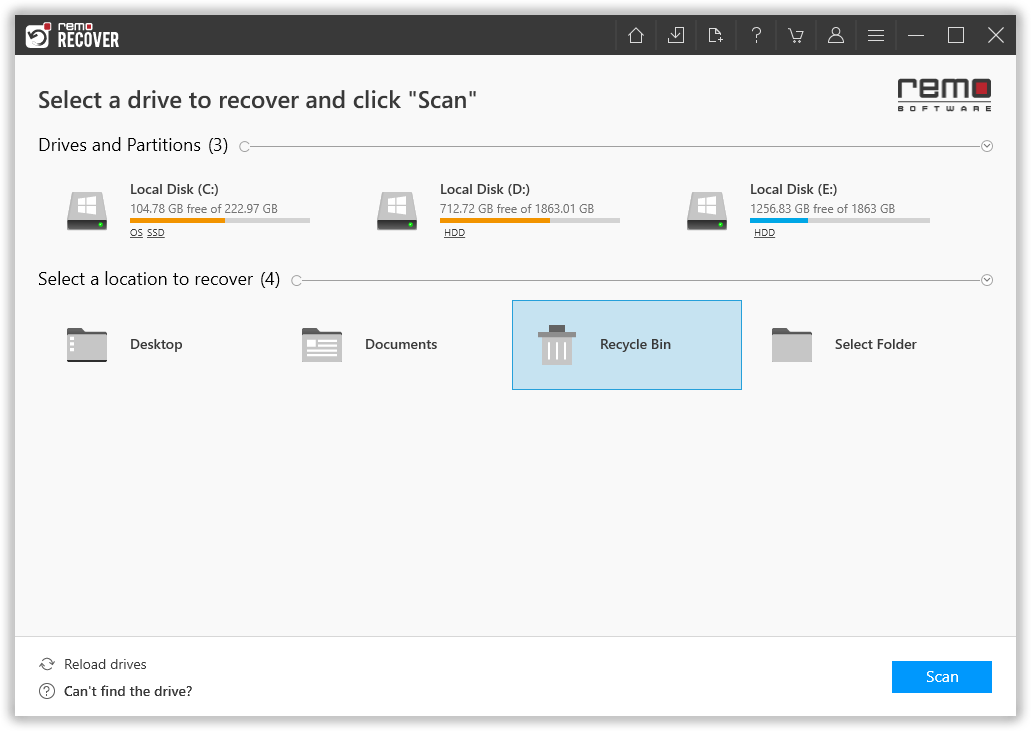
Step 1: Launch the Recycle Bin Recovery software and select Recycle Bin Folder and hit the Scan button to start the Recycle Bin recovery process.
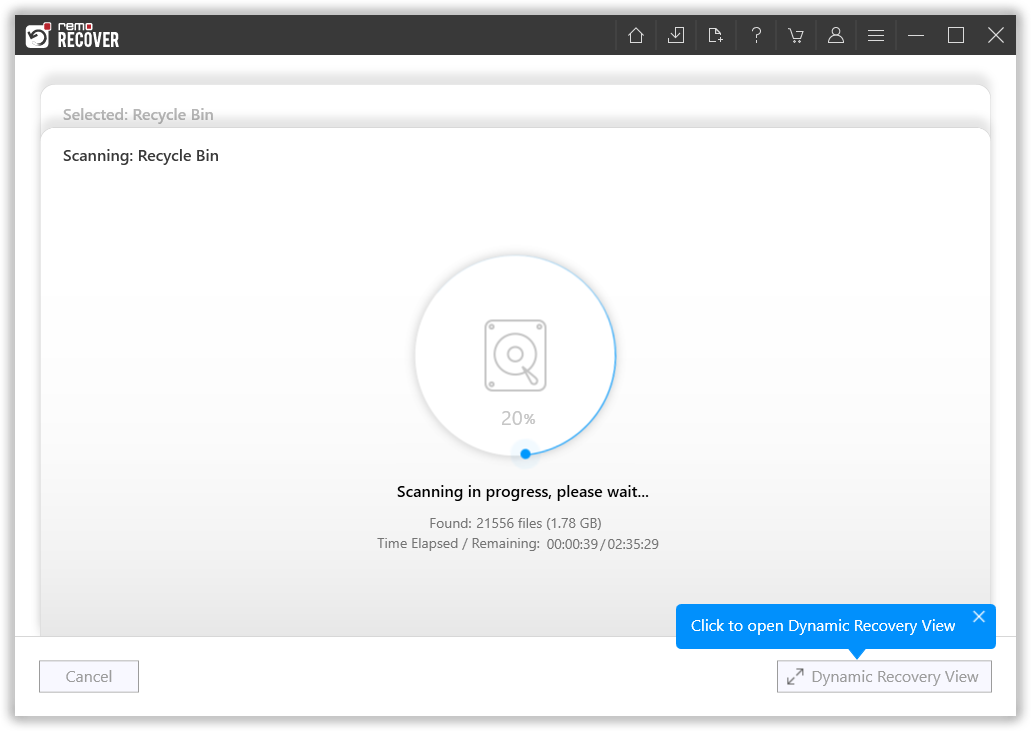
Step 3: Tool starts scanning for the files lost or deleted from the Recycle Bin.
Step 2: When the drive/folder scan begins, you can make use of the Dynamic Recovery View option to view and restore files as and when the scan progresses.
Step 4: Once the tool is done scanning the entire Recycle Bin folder. A comprehensive list of all recovered files gets displayed on your screen.
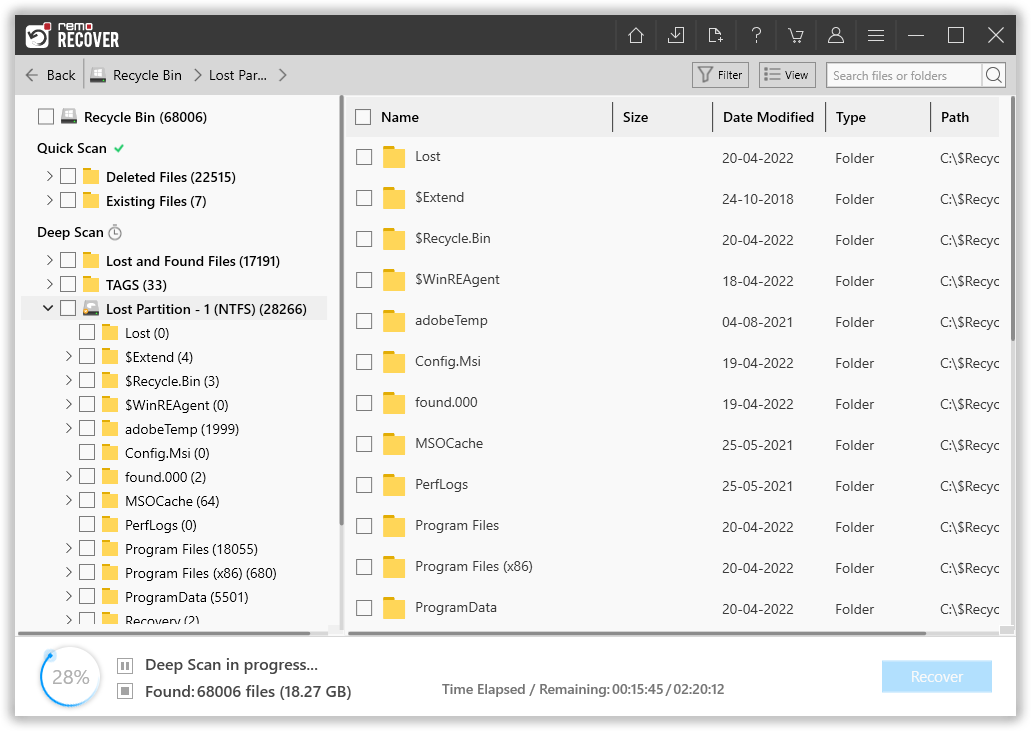
Step 5: You are allowed to preview the restored file items. Simply Double-click on any recovered file to Preview it..

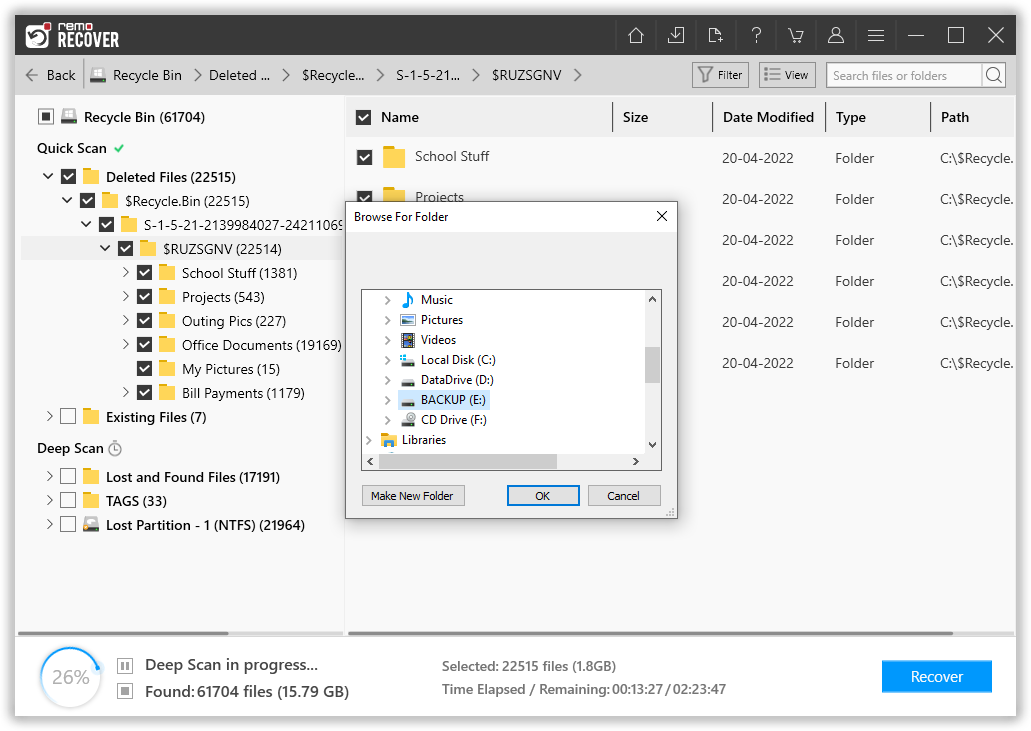
Step 6: Select a destination folder where you want to save the recovered data from the Recycle Bin.