How To Recover Files Deleted from Windows 7 Recycle Bin?
"How to recover deleted files from Recycle Bin Windows 7?" is still one of the frequently asked questions in the age of Windows 10. Since Windows 7 outrun Windows 10 or any other desktop OS in terms of the number of users. Certainly, the answer to this question is yes. To know the reason behind this, you have to understand some basics about file deletion. Continue reading to know how to recover files deleted from Windows 7 Recycle Bin..!
In contrary to the belief of several people, when a file is deleted from Recycle Bin, it will not get permanently erased from that PC. Only the reference to that file in the file allocation table gets deleted due do such a deletion. As long as the space which is occupied by the deleted file will remain unoccupied, you can perform the recovery of that file. Deletion of the files from Windows 7 Recycle Bin is not an exception.
How files get deleted from Windows 7 Recycle Bin?
- Selecting “Delete” Instead of “Restore”: Say, for example, you want to restore a file from Recycle Bin. For that, you are selecting that file by right-clicking and selecting the “Restore” option. But what happens, if you press the “Delete” option instead of restoring that file? It will create a need for recovering that file.
- Empty the Recycle Bin: If you select “Empty Recycle Bin” option without cross-checking the contents inside it, it can lead to the permanent deletion of some of the important files from the Recycle Bin.
- Disk Clean-up Tools: These tools when used on a drive, will remove all temporary files from it. Even files which reside on Recycle Bin, get deleted as the result. If vital files are stored in the Recycle Bin, it will get deleted due to this.
- Deleting large files & folders: Deleting files & folders whose size exceeds the size of the Recycle Bin folder will erase the files/folders permanently from the Windows system. The large files bypasses the Recycle Bin folder, and gets vanished from the system permanently.
IMPORTANT NOTE: Once you have deleted the files from Windows 7 drive and emptied the Recycle Bin folder, and want to restore some files back, then stop using the drive from where files are deleted immediately. This is to avoid overwriting of the files. If the files that are recently deleted from the Recycle Bin, are replaced with the new files on the hard drive, then it's not possible to restore them back. So avoid overwriting of the deleted files on Windows 7 drive.
Free Recycle Bin Recovery Tool to Recover Files Deleted from Windows 7 Recycle Bin Folder
Recycle Bin Recovery is a powerful utility which you can rely for recovering deleted files from Recycle Bin on Windows 7. This tool can easily recover deleted files from recycle bin windows 7 including images, videos, Word Files, spreadsheets, PDF files, applications, music files, ZIP archives and many more. You can sort recovered files in Data View as well as File Type View. Data View provides a hierarchical view whereas File Type View gives a view of files along with their extensions.
Key features of Recycle Bin Recovery Software:
- This tool helps you to recover files deleted from recycle bin Windows 10 as well as Windows 7 which got deleted from different types of hard drives like SATA, IDE, SCSI, etc.
- It supports all types of file systems apart from NTFS such as FAT32, FAT16, exFAT, HFS+, HFS, etc.
- Deleted data from various hard drive brands such as Seagate, WD, Toshiba, HGST, Samsung, Maxtor, Hitachi, etc. can be effectively restored with the help of this tool.
- Files which are bypassing Recycle Bin due to oversize can also be recovered with the help of the Recycle Bin Recovery tool.
- With the help of this tool, you can restore files deleted from Recycle Bin in Windows 10/8/8.1/7/Vista/XP/2000/Server 2003 & 2008 within a few steps even you are a novice user.
- You can contact technical support freely if any doubts arise while using this tool.
- With this ready-to-use tool, it is possible to recover recycle bin in Vista operating system just by following a simple mouse clicks easily.
Steps to recover files deleted from Windows 7 recycle bin:
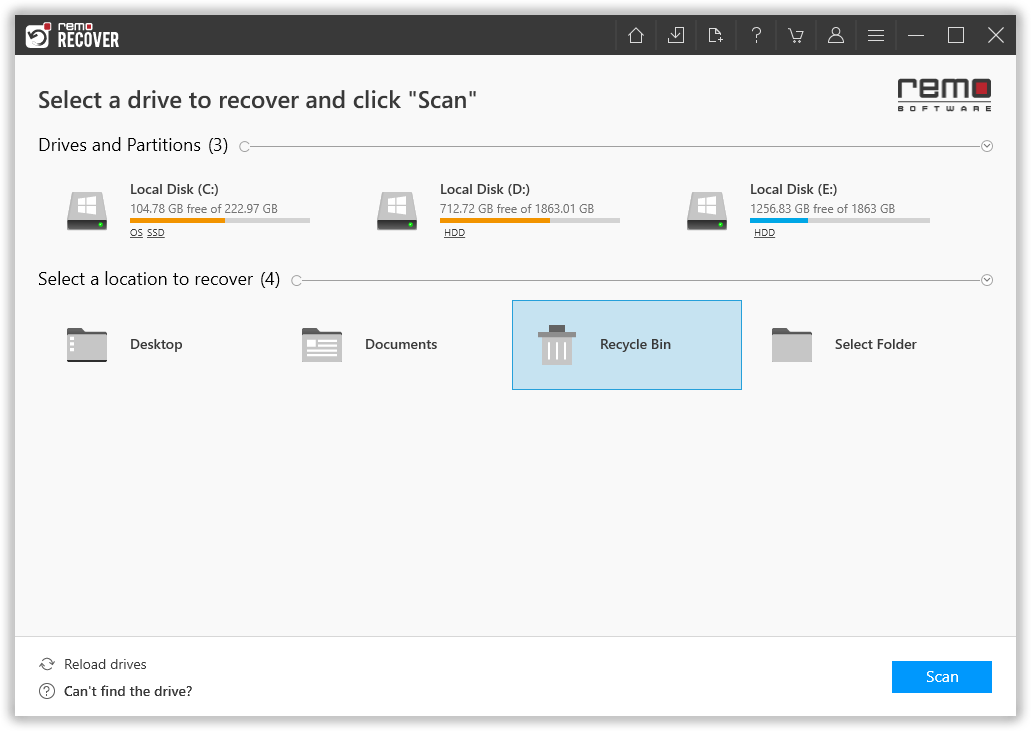
Step 1: Launch the Recycle Bin Recovery software and select Recycle Bin Folder and hit the Scan button to start the Recycle Bin recovery process.
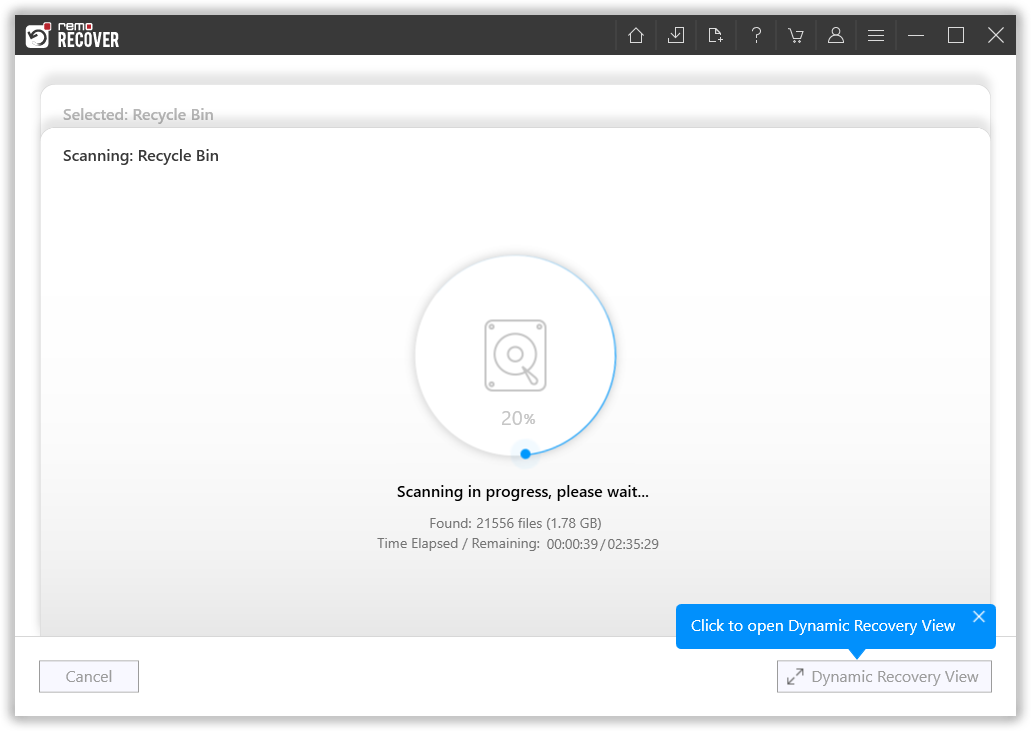
Step 3: Tool starts scanning for the files lost or deleted from the Recycle Bin.
Step 2: When the drive/folder scan begins, you can make use of the Dynamic Recovery View option to view and restore files as and when the scan progresses.
Step 4: Once the tool is done scanning the entire Recycle Bin folder. A comprehensive list of all recovered files gets displayed on your screen.
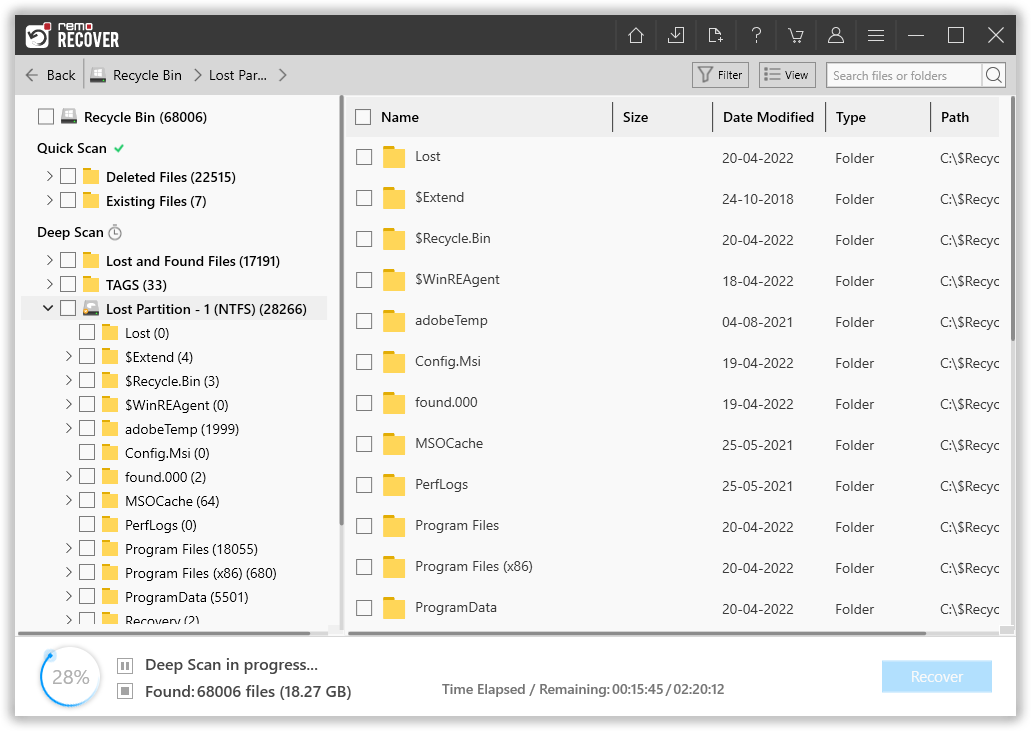
Step 5: You are allowed to preview the restored file items. Simply Double-click on any recovered file to Preview it..

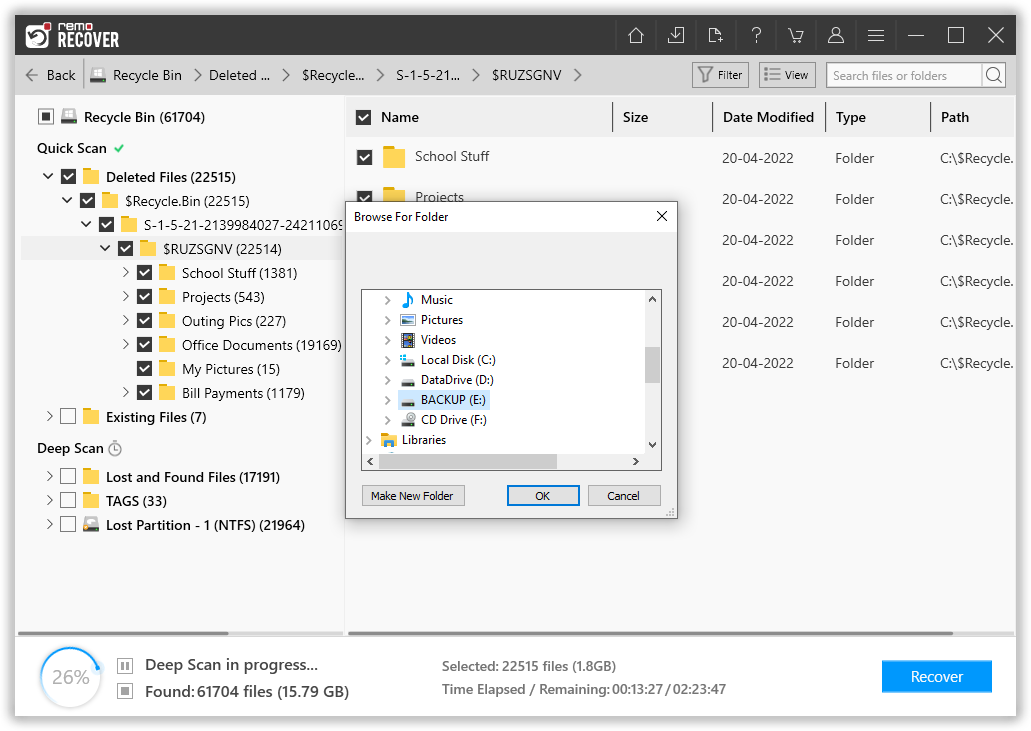
Step 6: Select a destination folder where you want to save the recovered data from the Recycle Bin.